
How to collect photo consent, including when a child is in the frame
Before you reuse a customer's photo, you want a clear yes on record, and a parent's yes when a minor appears in it. Here's how to build both into your UserTell submission form in about five minutes, with no code.
Key takeaways
- Both checkboxes are built into the UserTell submission form. Open Dashboard, click your gallery, and go to Step 3 – Custom Fields. No code, about five minutes.
- Make the photo-usage consent checkbox required and leave it unticked by default. Under the GDPR, a pre-ticked box doesn't count as consent.
- Ask for guardian permission only when it applies: an optional "A person under 18 appears in this photo" checkbox reveals a required guardian checkbox through a conditional rule.
- Every answer is stored with the post and exported as its own CSV column, so you can show later that you had permission.
- A checkbox records what the submitter told you. It doesn't verify it, so moderation still has to catch the rest.
The question that comes up right before launch
A merchant wrote to us recently with a setup question that deserves a public answer, because nearly every store that plans to reuse customer photos runs into it:
I need a required consent checkbox for photo usage, plus a parent/guardian permission checkbox when minors appear in a submitted photo. Where do I configure that?
It's the right thing to sort out before a gallery goes live. A customer's photo is still the customer's photo. The moment you want to put it on a product page, in an email, or in an ad, you need their permission, and you need to be able to show later that you got it. If a child is in the frame, you need that permission from someone entitled to give it.
The short answer: both checkboxes are built into the UserTell submission form. No code, about five minutes of setup. Here's the whole thing.
Where the submission form lives
Your submission form is configured inside the gallery itself. In the app, open Dashboard, click your gallery's name, and scroll to Step 3 – Custom Fields.
One thing that trips people up: the Fields Templates on the dashboard are starting points for new galleries. To change the form on a gallery you already have, edit Step 3 on that gallery directly.
The photo usage consent checkbox
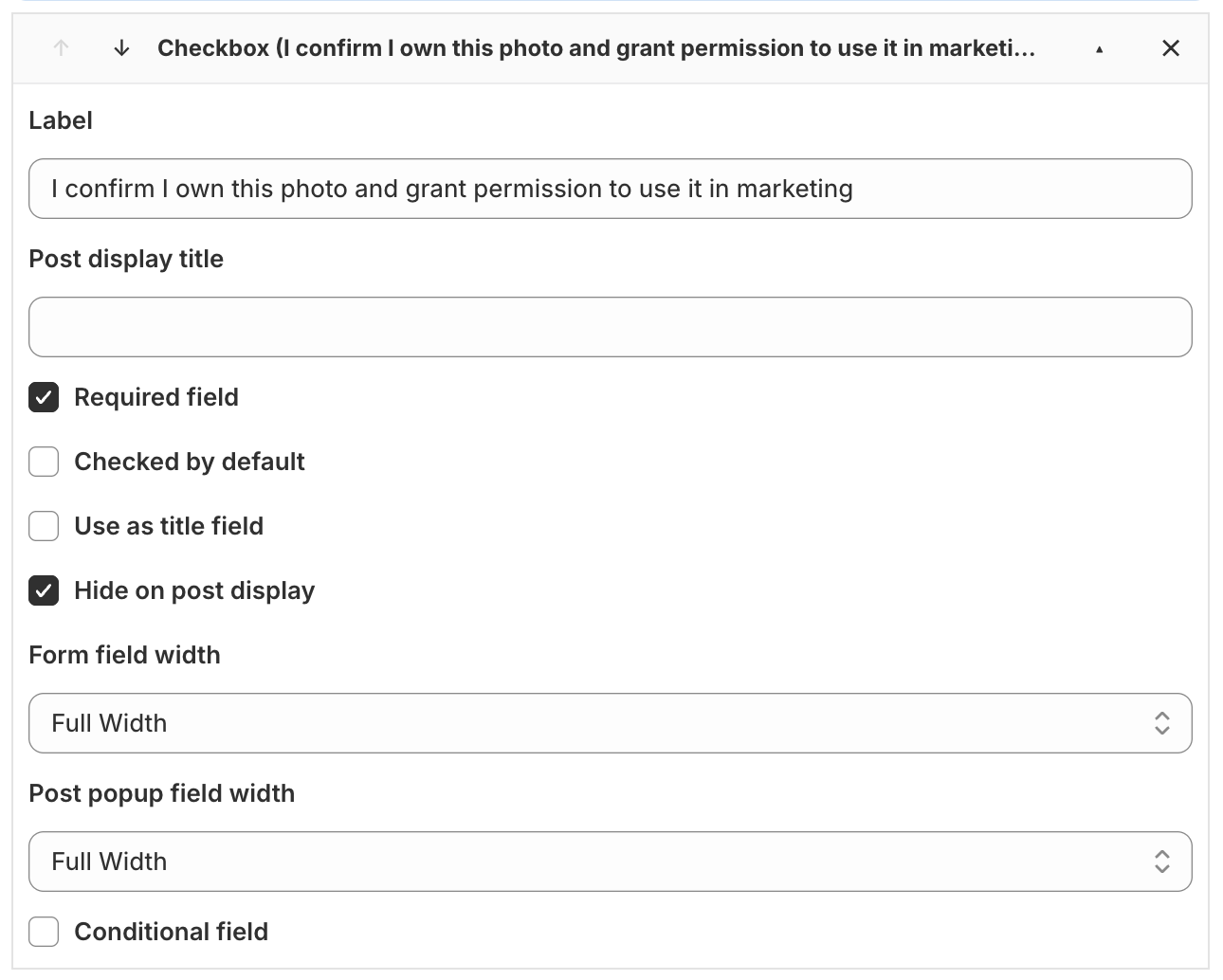
Add a field, set its type to Checkbox, and write your consent wording as the label. For example: "I confirm I own this photo and grant permission to use it in marketing."
Then three settings, each for a reason:
- Required field: on. Shoppers can't submit until they tick it. The rule is enforced on our side as well as in the browser, so it can't be skipped.
- Checked by default: off. A box that arrives already ticked records nothing about what the customer decided. The GDPR, for one, says outright in Recital 32 that pre-ticked boxes don't count as consent. Make the customer do the ticking.
- Hide on post display: on. The answer is for your records. It doesn't need to appear publicly on the post.
Guardian permission, only when a minor is in the photo
The lazy version of this is a second required checkbox on every submission. Don't do that. It asks a customer posting a photo of a candle to declare they're somebody's guardian, and a form that makes people tick things that don't apply to them trains them to tick without reading. That's the opposite of consent.
The better version asks the guardian question only when it's relevant. That takes two checkboxes.
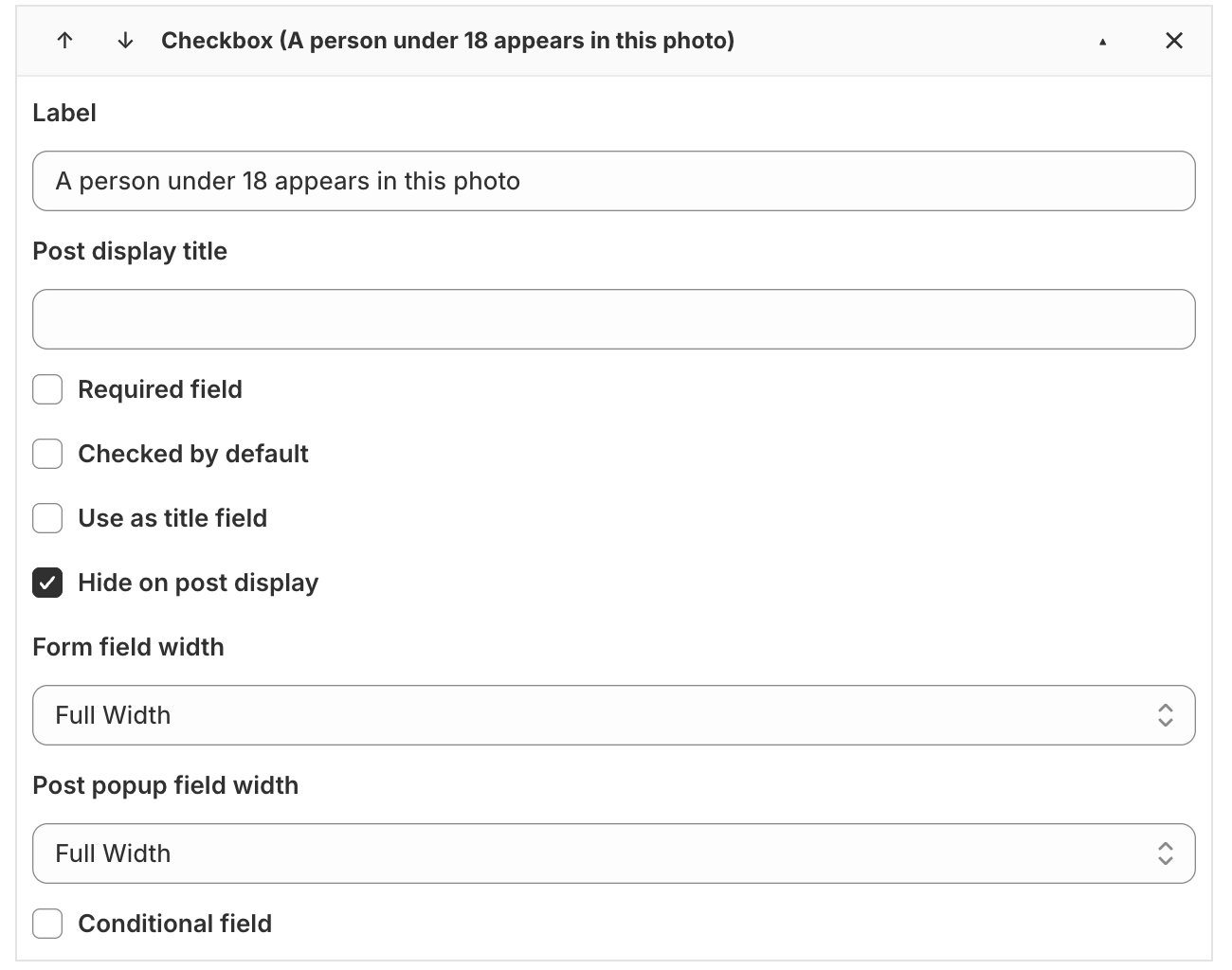
First, the question. Add a Checkbox labelled "A person under 18 appears in this photo". Leave it optional, and hide it on post display.
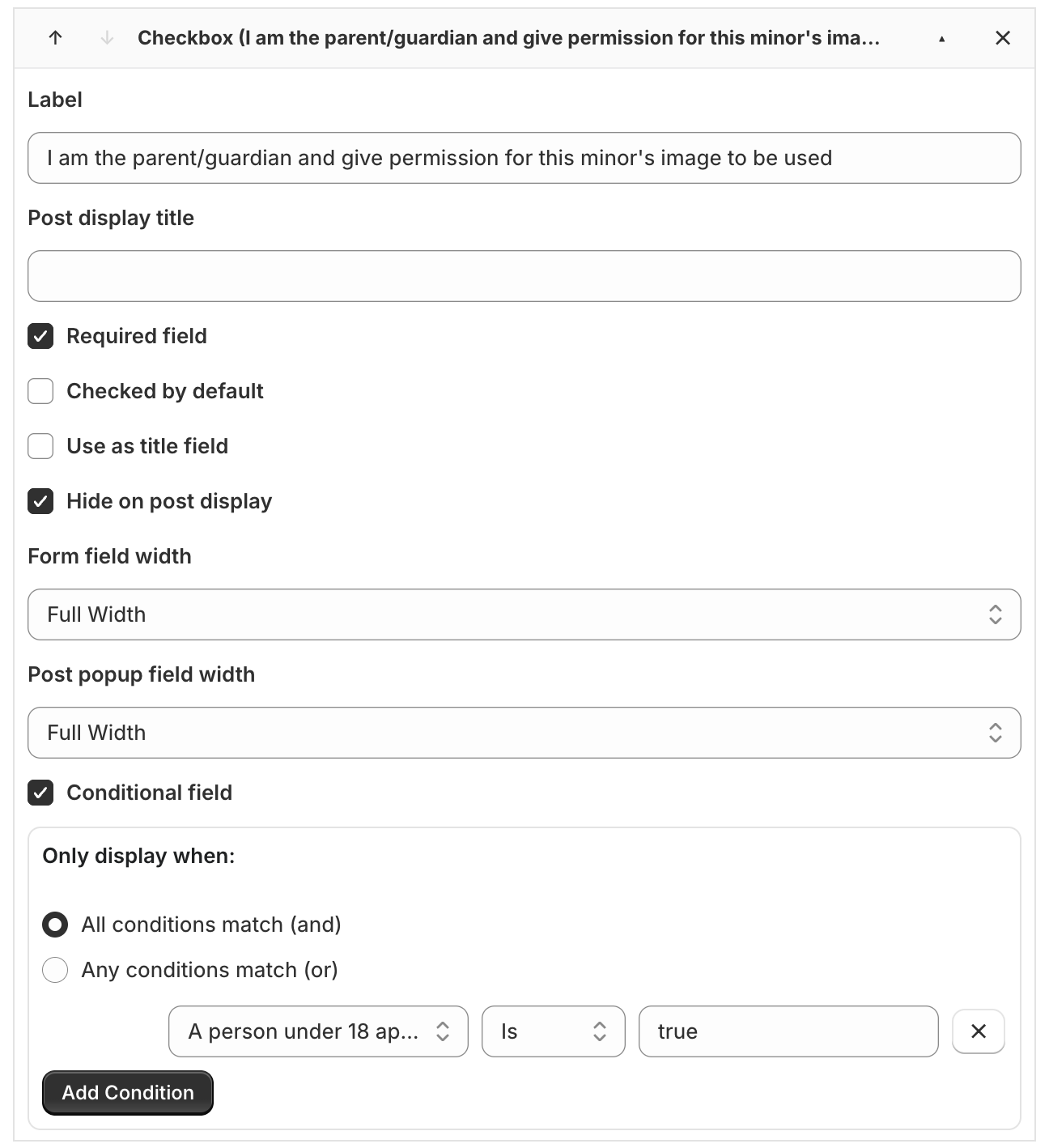
Second, the permission. Add another Checkbox labelled "I am the parent/guardian and give permission for this minor's image to be used". Tick Required field, then tick Conditional field and add one rule: the under-18 field, Is, true.
Type the value exactly as true. That's what a ticked checkbox records.
What your customer sees
On the storefront, the fields appear on the Info step of the submission form. By default the guardian checkbox is nowhere to be seen:
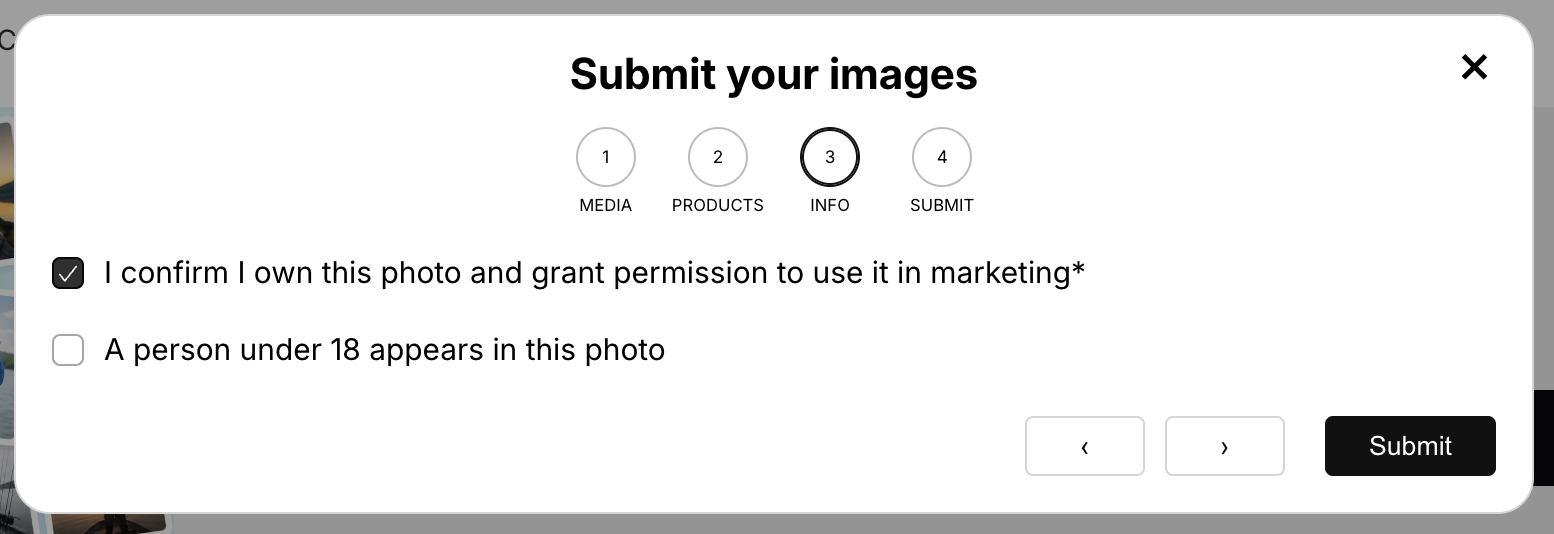
When a customer ticks "A person under 18 appears in this photo", the guardian checkbox appears and becomes required. If they untick it, the guardian question disappears again and won't block the submission. A customer posting a photo of the product on a shelf never sees it at all.
Linking your photo policy
Checkbox labels are plain text, so a link inside one won't be clickable. If you want customers to be able to read your photo usage policy before they agree, add an HTML content element just above the consent checkbox (it's one of the field types in Step 3) and put the link there.
It's worth doing. "Use it in marketing" means something different to every reader. A short policy page that says where photos may appear and how to ask for removal turns a vague yes into a specific one.
The record you keep
A consent checkbox is only as useful as your ability to find the answer later. Every consent answer is stored with the post it belongs to:
- You'll see it in the post editor while you moderate.
- It appears as its own column in the CSV export, under Manage posts → Import/Export.
So when someone on your team asks "are we allowed to put this photo in the spring campaign?", the answer is a filter on a spreadsheet, not an archaeology project in a support inbox.
What a checkbox can and can't do
It's worth being honest about the limits.
A checkbox records what the submitter told you. It doesn't verify that the person ticking the guardian box really is the child's parent, and it can't stop someone from leaving the under-18 box unticked on a photo of a toddler. That's what moderation is for. Our moderation checklist already has you looking for people in the frame who haven't consented. Add one line to it: if a child is clearly visible and the guardian permission isn't on the post, don't approve it until you've followed up.
The wording is also yours to get right. What counts as valid consent, and the age at which someone can give it for themselves, varies by country and sometimes by state. The labels above are a sensible starting point, not legal advice. If you plan to use customer photos in paid advertising, have someone qualified read your consent line and your policy page once.
The five-minute version
- Open Dashboard, click your gallery, and go to Step 3 – Custom Fields.
- Add a required Checkbox with your consent wording. Not pre-ticked, hidden on post display.
- Add an optional Checkbox: "A person under 18 appears in this photo".
- Add a required Checkbox for guardian permission, shown only when the under-18 field Is true.
- Optionally, add an HTML content element that links to your photo policy.
- Submit a test post from your storefront, then check the answers in the post editor and the CSV export.
That's the whole setup. Customers who are happy to share get one extra tick. Parents get a clear question at the moment it applies. And you get a record you can point to.